QListviewEx
Component
Dreadsoftî Corporation
(manco un diritto riservato)
http://dreadsoft.too.it
dreadsoft@yahoo.it (Andreas Fink)
A bit complex, but with a lot of enhancements.
Sorting, filtering, fastclear. Data can be loaded from (and saved to) files,
Qmemorystream, Qfilestream. Support for CSV files. Very flexible layout. This
component is included in RAPIDQ2.INC. See Limitations
QListViewEx
Structure
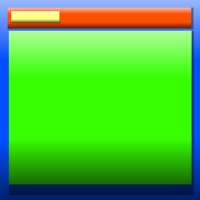 |
Above you can
see a "section" of the QListviewEx component
|
|
QlistviewEx is made by 4 components
- ParentPanel (Blue) is the main
container, if you want to resize QlistviewEx you have to resize it. Other
components will follow almost automatically
- Header (Red) contains new-style column headers
- QlistviewEx (Green) is the Qlistview component itself
- Colheader (Yellow) array of Qcoolbtn
|
QListViewEx
Properties
|
Field |
Type |
R/W |
Notes |
| Parentpanel |
QPanel |
RW |
The panel which contains
the listview and its header. The first thing to do is assign a parent to
ParentPanel. |
| Header |
Qpanel |
RW |
Container for column
headers |
| Colheader |
Array of Qcoolbtn |
RW |
Column header |
| Csv |
QSTRINGLIST |
RW |
Used to store data.
It can get data directly from a file, Qmemorystream, Qfilestream (See Qstringlist
documentation for details) |
| CsvFile |
STRING |
RW |
Filename of a CSV
file |
| Separator |
STRING |
|
Character(or string)
used to separate columns in csv |
| FieldsCount |
INTEGER |
RW |
Number of fields(i.e.
possible columns) found in the first string of csv |
| Columns_Count |
INTEGER |
RW |
Number of columns
created with the addcol method (see below) |
| Flatheaders |
INTEGER |
|
Determine if column
headers have a 3D border |
QListviewEx
Methods
|
Method |
Type |
Description |
Params |
| Draw |
void |
|
|
| Load |
Void |
Loads data
from csv, separating each line in columns (using SEPARATOR) |
|
| SortBy |
Sub (Criterium as
String) |
See tutorial
for details... |
1 |
| LoadFromCsvFile |
Void |
Loads data
directly from csvfile, updating csv. Make sure the CsvFile
Property is set |
|
| FastClear |
Void |
Quicker cleaning
function (not needed for long lists) |
|
| Exclude |
sub (Column as integer,
Criterium as string) |
Removes unwanted
items searching for a specific value (Criterium) in the specified column |
|
| AddCol |
sub (ColToAdd as string) |
Use this one instead of the addcolumns
method. To add columns, pass a single string containing headers captions,
separated by "/"
Example:
Qlistviewex.addcol "First Name/Last Name/Address/Phone Number"
|
|
| UpdateCsv |
void |
writes QlistviewEx
data to csv |
|
| Filter |
sub(column as integer,
criterium as string) |
Keeps only
specified items (see tutorial) |
|
| SaveToCsvFile |
void |
updates CSV
and writes data to csvfile |
|
| SaveToFileAs |
void |
Save CSV to
file (discarding QlistviewEx changes) |
|
| DirecSaveAs |
void |
Saves QlistviewEx
data without updating CSV |
|
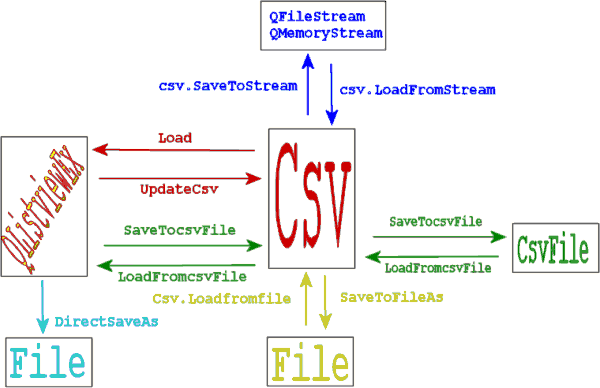
The many
ways to read / write data
QLISTVIEWEX Example

$INCLUDE "RapidQ2.INC"
DECLARE SUB LoadCSVFile

CREATE form as qform
  center
  Width = 350
  Height = 350
    CREATE list as QLISTVIEWex
    ParentPanel.Parent = Form   'note!!
    Parentpanel.align = alNone	'note!!
    left = 50
    Top = 50 'this should be .Top property, etc.
    Width = 250 'this should be .left property
    Height = 250 'this should be .Top property, etc
    addcol "City/First Name/Last Name"
    ' addcolumns "First Name", "Last Name", "City"
    Separator = "/"
    AddItems "Seattle", "Denver", "Durango", "Providence", _
    "Stony Brook", "Los Angeles", "Hicksville"
    AddSubItem 1, "1sdf"
    AddSubItem 2, "2sdf"
    AddSubItem 3, "3sdf"
    column(0).width = 100
    column(1).width = 100
    column(2).width = 100
    'Colheader(0).bmp = "Star.bmp" '  icon in a column!
    header.bevelinner = 1
    header.color = rgb(20,145,200)
    header.height = 25
    header.font.size = 10
    Draw             'update manually
    END CREATE
  CREATE GoCSVButton AS QBUTTON
    Top = 1
    Caption = "Load CSV file"
    onClick = LoadCSVFile
  END CREATE
END CREATE
SUB LoadCSVFile
  list.csvFile = "database.csv"
  list.loadfromcsvfile
  list.addcol "First Name/Last Name/City"
  list.exclude(1, "red")' Unlike filter and exclude Sortby is CASE SENSITIVE
  list.load
  list.exclude (1, "White")
  list.filter (1, "Red")
  list.sortby ("City")' Unlike filter and exclude Sortby is CASE SENSITIVE
END SUB

form.Showmodal
Not quite
clear yet?
$include "Qlistviewex.inc"

dim form as qform
with form
.center
end with


' First. We create a new QlistviewEx                  |  - First Steps -
dim list as qlistviewex


' We set the parentpanel Parent window                |
list.Parentpanel.parent = form


' then align the parentpanel to the whole client area |
' (but we could align it in any way)                  |
list.parentpanel.align = 5


' To put other components we use the Draw method.     |
' the draw method is VERY important, because it's used|
' to update the QlistviewEx layout                    |
list.draw


'Ok, now it's time to add some columns. Please note:  |  - Adding Columns -
'if you want the component to run correctly you have  |
'to use this method instead of the normal addcolumns  |
'as this method updates the Columns_Count property too|
list.addcol "First Name/Last Name/City"

' Generally, csv files use ";" as column separator,   |  - Separator -
' but sometimes we need to import files or streams    |
' Which use different separators, like "/" or "," or  |
' strings like "<thisisacolumnseparator>".            |
' this is the purpose of the Separator property:      |
' before loading a file, write this                   |
list.Separator = "/"


'Now we want to load some data in the listview. We    |  - Loading data -
'could use the file included in this package called   |
'database.csv.
list.csvFile = "database.csv"
list.loadfromcsvfile

'You see, columns are a bit narrow, so we would like  |  - Columns width -
'to do something like this :                          |

list.column(0).width = 100
list.column(1).width = 100
list.column(2).width = 100

' And then call the draw method. By the way... have   |
' you already clicked on column headers ?!?  Yes, they|
' start automatic sorting                             |
list.draw


' Maybe we don't want REDs in our list                |  - Excluding items -
list.exclude(1, "red")

' Oh, sorry, we don't want WHITEs                     |  - Reloading data -
list.load
list.exclude (1, "White")

' As long as the program is "alive" (and as long as   |
' you don't change csv) the csv property will keep the|
' original data, so you can use the load method to    |
' reload data from memory                             |

' Now we want to keep only REDs                       |  - Filtering -

list.filter (1, "Red")

' ** NOTE ** Filter and exclude are NOT case sensitive|
' so RED or Red or red or rEd is the same             |

' Now we have to sort items by City. We have 2 ways   |  - Sorting -
' 1 - Click on the "City" column header               |
' 2 - Use the sortby method                           |

list.sortby ("City")

' Unlike filter and exclude Sortby is CASE SENSITIVE  |


' =================================================================|
' Changing layout and other capabilities                           |
' =================================================================|

' You can use QlistviewEx as a common Qlistview       |
' component, so you can add/delete items and subitems |
' as usual


' The "complex" structure of the QlistviewEx component|  - Header -
' allows a lot of extra properties/capabilities. For  |
' Example, if we want to change the header layout we  |
' can treat it as a common Qpanel:                    |

list.header.bevelinner = 1
list.header.color = rgb(20,145,200)
list.header.height = 25
list.header.font.size = 10

' or maybe we don't want to see it...                 |
list.header.visible = 0

' ParentPanel is a Qpanel, so we can do things like   |  - ParentPanel -
list.Parentpanel.align = 1
list.Parentpanel.height = 180


' Column headers are Qcoolbtn, so we can add icons,   |  - Column headers -
' and things like that                                |
list.Colheader(0).bmp = "Star.bmp"
list.draw

' if we don't want flat column headers we just write  |
list.flatheaders = 0
list.draw

' if we want only the first column header to be flat  |
' then:                                               |
list.colheader(0).flat = 1

' ** NOTE ** this property will be overwritten every  |
' time you call the draw method ...                   |


' IMPORTANT. You can change column headers caption    |
' using the .colheader.caption property, but this is  |
' not the correct way. If you want the QlistviewEx to |
' run properly, you must set column width and caption |
' using the QlistviewEx.Column() property and then    |
' call the DRAW method.


' When you manipulate hundreds of items, and you want |  - Fastclear -
' to clear the Qlistview, if you use the clear method |
' you will have to wait some minutes with a slow pc.  |
' in cases like this you can use the Fastclear method |
list.fastclear

' remember: it's not necessary if you have small lists|
